

The problem
When supporting users in an MSP environment, there are always going to be times when an engineer needs administrator rights on a workstation.
There might be an application that needs installing, a Windows setting that needs changing, or something that simply cannot be fixed without elevation.
However, we don’t necessarily want the end user to be a local administrator on their machine just so that our engineers can perform administrative tasks when required.
This then presents another problem.
How do we give our engineers local administrator access without having a single administrator password that is shared across every workstation we manage?
I wanted something that could be completely automated using Datto RMM.
The idea was fairly simple:
- Have a dedicated local administrator account on each Windows workstation.
- Generate a random password for it.
- Store that password against the device in Datto RMM.
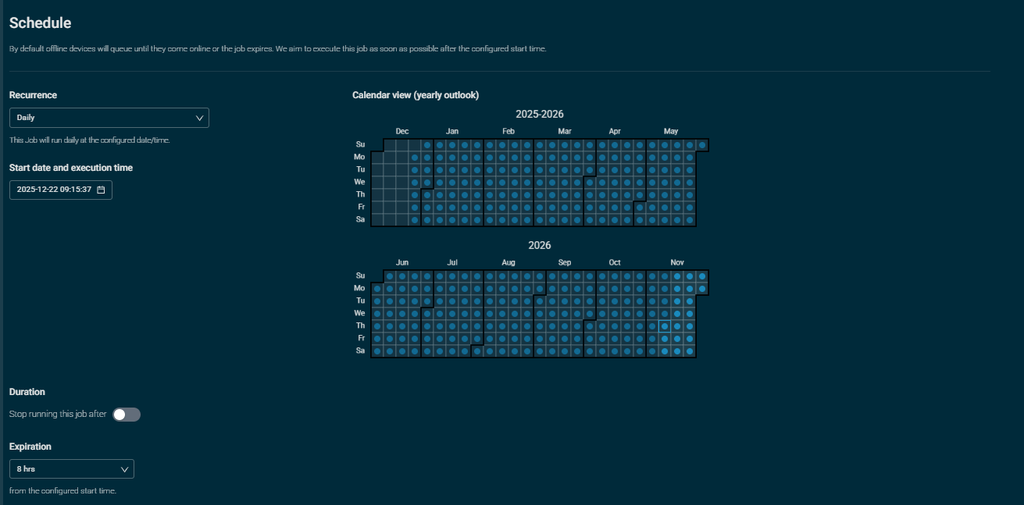
- Change the password automatically every day.
- If the administrator account gets deleted, recreate it automatically.
This means our engineers can get administrator access when they need it, without needing to know a permanent password.
Using Datto RMM
I created a Datto RMM component which is scheduled to run daily across our Windows workstations. Its targeted at a filter, aiming at all sites but only devices with Windows 10 or 11 installed that also has a type that’s a desktop or laptop. You can get the PS1 from my repo: wrigglethemouse/Random-Local-Admin-Password/script.ps1 at main · twrigglesworth/wrigglethemouse
The component runs a PowerShell script which first takes the administrator username configured within Datto RMM:
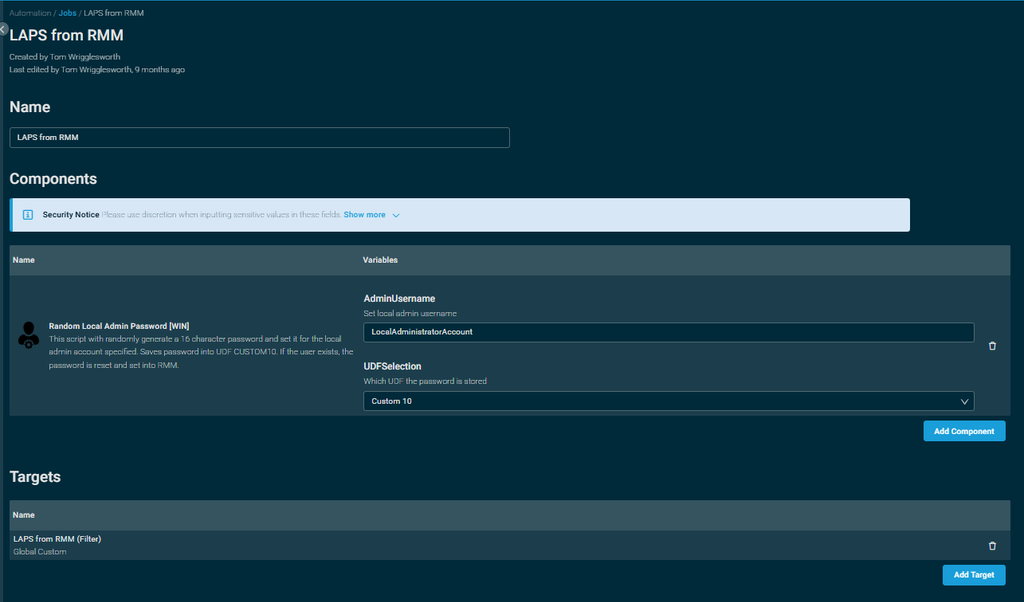
$Username = "$env:AdminUsername"For my example, the account is:
RMM Local AdminUsing an environment variable means I don’t need to hardcode the username throughout the PowerShell script. If I ever want to change the account being managed, I can change the component variable rather than rewriting the script.
The component then generates a new 16-character password:
function New-RandomPassword {
    param (
        [Parameter(Mandatory=$true)]
        [int]$Length,
        [string]$Characters = 'abcdefghijklmnopqrstuvwxyzABCDEFGHIJKLMNOPQRSTUVWXYZ0123456789!@#%?'
    )

    $password = -join (1..$length | ForEach-Object {
        Get-Random -InputObject $characters.ToCharArray()
    })

    return $password
}
I then call the function using:
$Password = New-RandomPassword -Length 16 -Characters "abcdefghijklmnopqrstuvwxyzABCDEFGHIJKLMNOPQRSTUVWXYZ0123456789!@#%?"Every time the component runs, a new password is generated.
As the component runs separately on every workstation, each machine generates its own password. The following day, both passwords will change again.
So, for example:
WORKSTATION-01
RMM Local Admin
Password: X8f#2Lm?9QaP4tKs

WORKSTATION-02
RMM Local Admin
Password: mP4!xK8q2Wz#7LsR
Checking if the administrator account exists
Before creating anything, the script checks whether the local administrator account already exists:
if (Get-LocalUser -Name $Username -ErrorAction SilentlyContinue) {If the account exists, there isn’t really anything else we need to do apart from change its password:
Set-LocalUser -Name $Username -Password $securePasswordThe password generated earlier needs converting into a SecureString before it can be provided to the Windows local user commands:
$securePassword = ConvertTo-SecureString $Password -AsPlainText -ForceDuring a normal daily run, this is essentially all the component needs to do.
The RMM Local Admin account remains on the machine, but the password behind it changes.
What if somebody deletes the account?
This is where I wanted the script to look after itself.
If the RMM Local Admin account isn’t found, instead of the component simply failing, PowerShell creates it again:
New-LocalUser `
    -Name $Username `
    -Password $securePassword `
    -FullName "RMM Local Admin" `
    -Description "RMM Local Administrator Account"
The script then adds the account to the local Administrators group:
Add-LocalGroupMember -Group "Administrators" -Member $UsernameThis means it doesn’t really matter whether the component is running on a machine for the first time or somebody has subsequently removed the account.
Getting the password into Datto RMM
There isn’t much point generating a random password if our engineers can’t retrieve it when they actually need it.
This is where Datto RMM User Defined Fields come in.
After generating the new password, the script writes it into the CentraStage registry location used for the Datto RMM UDF:
REG ADD HKEY_LOCAL_MACHINE\SOFTWARE\CentraStage /v Custom10 /t REG_SZ /d $Password /fIn this example I’m using Custom10.
Once the value is available within Datto RMM, the current password can be displayed against the individual device.
So instead of an engineer having to know a shared administrator password, the engineer can go to the workstation in Datto RMM and retrieve the password specifically for that machine.
That is probably my favourite part of the whole thing.
There isn’t really anything new that the engineers need to learn.
What does this look like for an engineer?
Let’s say an engineer is remotely connected to a user’s workstation.
An application needs installing and Windows displays a UAC prompt requesting administrator credentials.
Instead of giving the end user local administrator permissions or finding a shared admin password, the engineer can:
- Open the workstation in Datto RMM.
- Find the UDF containing the administrator password.
- Copy the current password.
- Enter
RMM Local Adminand the password into the UAC prompt. - Carry on with whatever they were doing.
That’s it.
The engineer doesn’t need to know yesterday’s password.
There isn’t a spreadsheet containing the passwords.
And there isn’t one permanent password that works across the entire estate.
Datto RMM is managing the password for us.
What does the end user see?
Nothing.
And that’s exactly what I wanted.
The Datto RMM component runs in the background, so as far as the user is concerned nothing has changed.
They don’t receive a pop-up.
They don’t need to restart their computer.
They don’t need to know another password.
Most importantly, they don’t need to be made a local administrator.
They continue using their computer normally.
If something requires elevation, the support engineer can provide the administrator credentials when required.
Why change the password every day?
One of the biggest things I wanted to avoid was having permanent local administrator credentials.
If we created RMM Local Admin and gave the account a password that never changed, eventually that password could end up somewhere it shouldn’t.
Someone might copy it into a ticket.
It might end up in some old documentation.
Someone might save it locally.
Or it might simply become known by far more people than originally intended.
Automating the password change means we’re not relying on somebody remembering to rotate it.
Datto RMM just does it for us.
Every day.
It also isn’t the same password everywhere
For me, this is probably even more important than changing the password daily. The job starts first thing and then tries for 8 hours (a working day).
Imagine managing 1,000 workstations with the same local administrator username and password.
If someone obtained those credentials from one machine, there is a chance they could try the same credentials against another machine.
And another.
And another.
With this setup, each workstation generates its password independently.
For example:
WORKSTATION-01
RMM Local Admin
Password: X8f#2Lm?9QaP4tKs
Knowing those credentials doesn’t tell you the password for:
WORKSTATION-02
RMM Local Admin
Password: mP4!xK8q2Wz#7LsR
Is this a replacement for LAPS?
No.
Microsoft has Windows LAPS specifically for managing local administrator passwords, and where LAPS fits the environment it should absolutely be considered.
This was more about looking at what I could achieve with the tooling already available within an MSP environment.
We already have Datto RMM installed across the workstations.
We already use components to manage devices.
We already have UDFs which allow us to store device-specific information.
PowerShell then gives us the ability to glue all of those things together.
It’s also important to remember that storing the password in a Datto RMM UDF means access to that UDF needs to be treated appropriately. If an engineer can view the UDF, they can potentially retrieve the local administrator credential for that workstation.
The security around Datto RMM itself is therefore just as important as the script.
The end result
What I like about this automation is that it’s actually quite simple.
There aren’t loads of moving parts.
Datto RMM runs the component.
PowerShell generates a password.
It checks for RMM Local Admin.
If the account isn’t there, it creates it.
If the account is already there, it changes the password.
The new password is stored against the device.
And the process repeats again the following day.
From the engineer’s point of view, there is a straightforward way of getting administrator access when it’s needed.
From the user’s point of view, nothing changes.
And from an administration point of view, we don’t need to maintain one static local administrator password across a large number of machines.
Sometimes the useful automations aren’t the enormous workflows with hundreds of steps.
Sometimes it’s just taking something that would otherwise be difficult to manage and making sure nobody has to think about it again.