

Microsoft Intune gives administrators powerful tools to define and enforce expectations for enrolled devices. With built‑in compliance policies, IT teams can verify key security attributes such as device encryption, TPM availability, and other essential configuration requirements. These compliance checks then integrate seamlessly with Conditional Access, enabling automatic responses like blocking access or requiring additional authentication (such as MFA) when a device falls out of compliance.
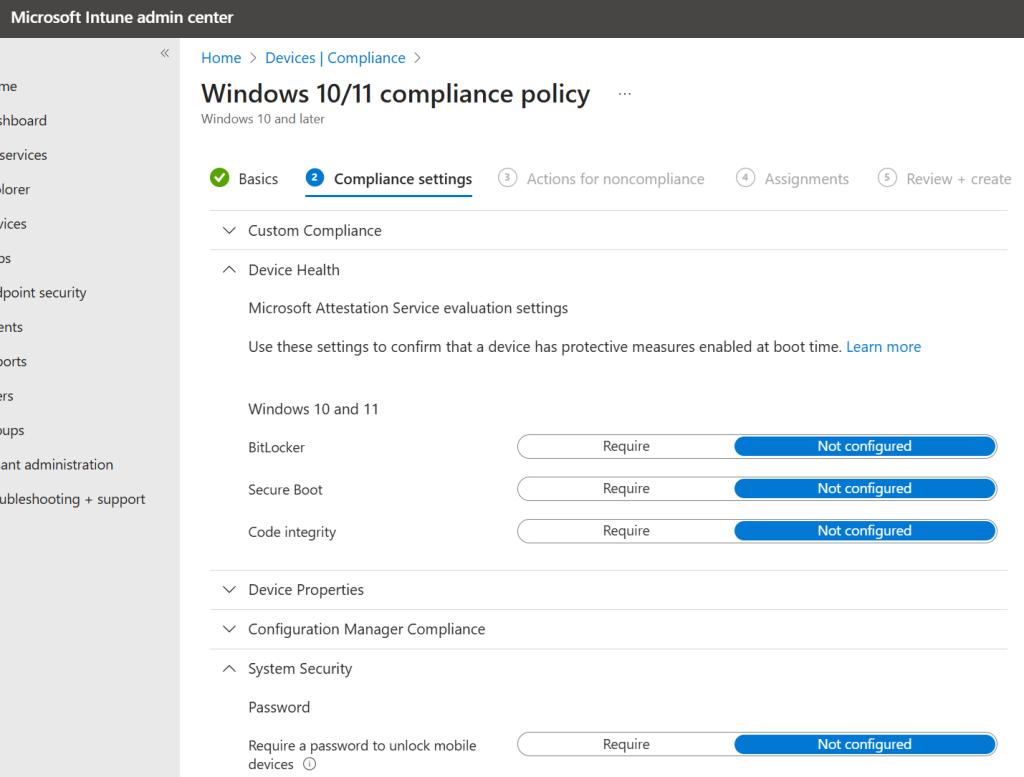
Traditionally, Intune’s compliance settings have been fairly rigid, offering only a limited set of predefined options. However, this has now evolved. Administrators can now create custom compliance policies, allowing them to define security and configuration standards with far greater precision. This flexibility makes it possible to tailor compliance requirements exactly to organisational needs and ensure devices are set up in the right way from the start.
A custom policy is created it two parts, in my example I am checking that my devices have all the correct security software Crowdstrike, Threatlocker and Express VPN is not installed.
There’s the PS1 file that gets the information about the device, here is where you find out about software installed, services running, versions of things and the size of things. That information is then brought back to Intune on the find line than needs to be $results and then converted to a JSON.
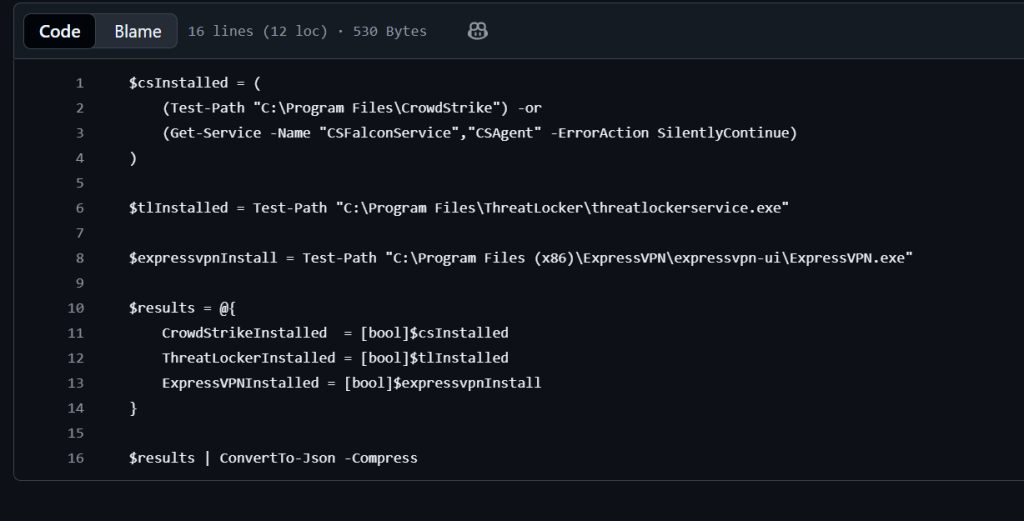
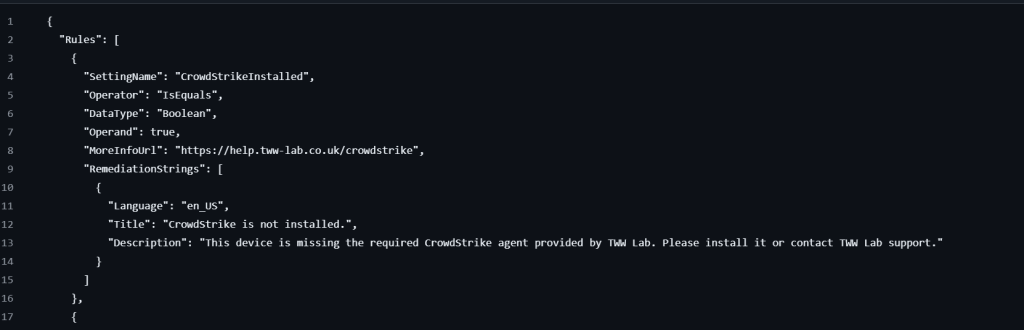
That returned information is then defined in a JSON file, within the compliance policy as to what compliant terms looks like. Within each compliance rule, you need to make sure that the SettingName matches the variable used in PS1 file.
In my JSON, in order to be compliant the EXE for Crowdstrike and Threatlocker need to exist and the EXE for Express VPN must not be present. This is done with operators (is equals), data type (String, Integer and Boolean) and operand (what’s expected to be seen in a compliant device). Microsoft already requires you populate the information that will be presented to the end user, when they are marked as not compliant.
If the formatting of the JSON is correct, when added to the compliance policy – you should see a list of the attributes and what is expected.
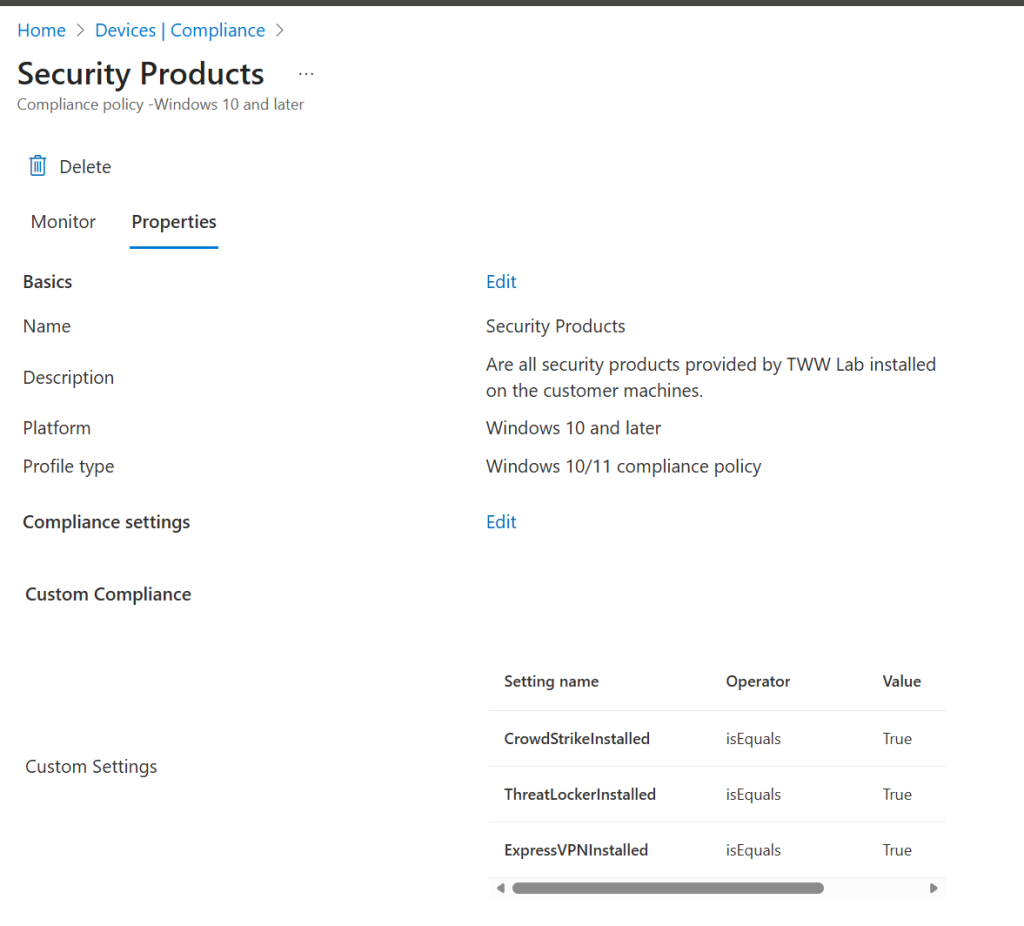
This then works exactly as the compliance policies already in use but now adjusting the Powershell script to get the information and adjusting the JSON file to interpret it, Microsoft Intune can be set to watch for settings, software and files that are needed/not needed.
If you want to see the working examples I used in my lab, they can be found in the GitHub
https://github.com/twrigglesworth/wrigglethemouse/tree/main/Custom-Compliance-Policies-for-Intune